
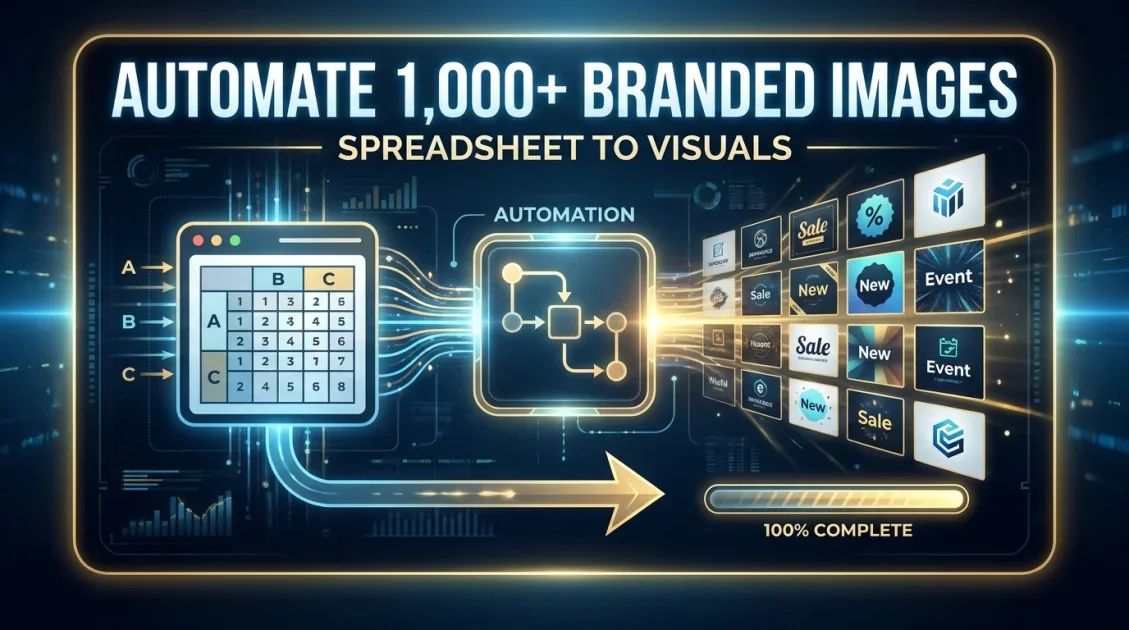
Image automation is the process of generating finished visual content, such as banners, social posts, thumbnails, and product images, from a template and a data feed instead of a designer manually opening Photoshop or Canva for every single asset. A design team builds the template once, connects it to a spreadsheet, form, or API, and the system fills in the text, images, and colors automatically, producing hundreds or thousands of on-brand images in the time it used to take to make one. This guide covers what image automation actually does, how the technology works under the hood, where teams use it, and how to set it up.
In this article
- What is image automation?
- How does automated graphics generation work?
- What is visual automation used for?
- Image automation vs manual design vs AI image generation
- How to set up marketing image automation
- What tools support image automation?
- Benefits and challenges
- FAQ
What is image automation?
Image automation replaces the repetitive part of graphic design, resizing, retyping, and re-exporting the same layout with new content, with a system that does it programmatically. Instead of a designer manually swapping a headline and a product photo fifty times for fifty products, a template holds placeholders for that text and image, and an automation tool merges in fresh data for each version.
It is closely related to what marketers call "automated graphics" or "visual automation": the umbrella term for any workflow where images are produced by rules and data rather than by hand, one at a time. The output is not AI generated art from a text prompt. It is a controlled, on-brand version of a template that a designer already approved, which is why marketing, sales, and product teams rely on it more than generative art tools for anything that needs to stay consistent.
How does automated graphics generation work?
Most image automation tools follow the same three-part structure:
- A template. A designer builds the layout once in a visual editor, positioning text boxes, image placeholders, shapes, and brand colors exactly as they should appear.
- A data source. This can be a spreadsheet row, a form submission, a webhook from another app, or a direct API call carrying the values that should fill the template, a product name, a price, a customer photo, a rating.
- A rendering engine. The automation platform merges the data into the template and exports a finished PNG, JPG, or MP4 in seconds, usually returned as a URL you can drop straight into an email, ad, or page.
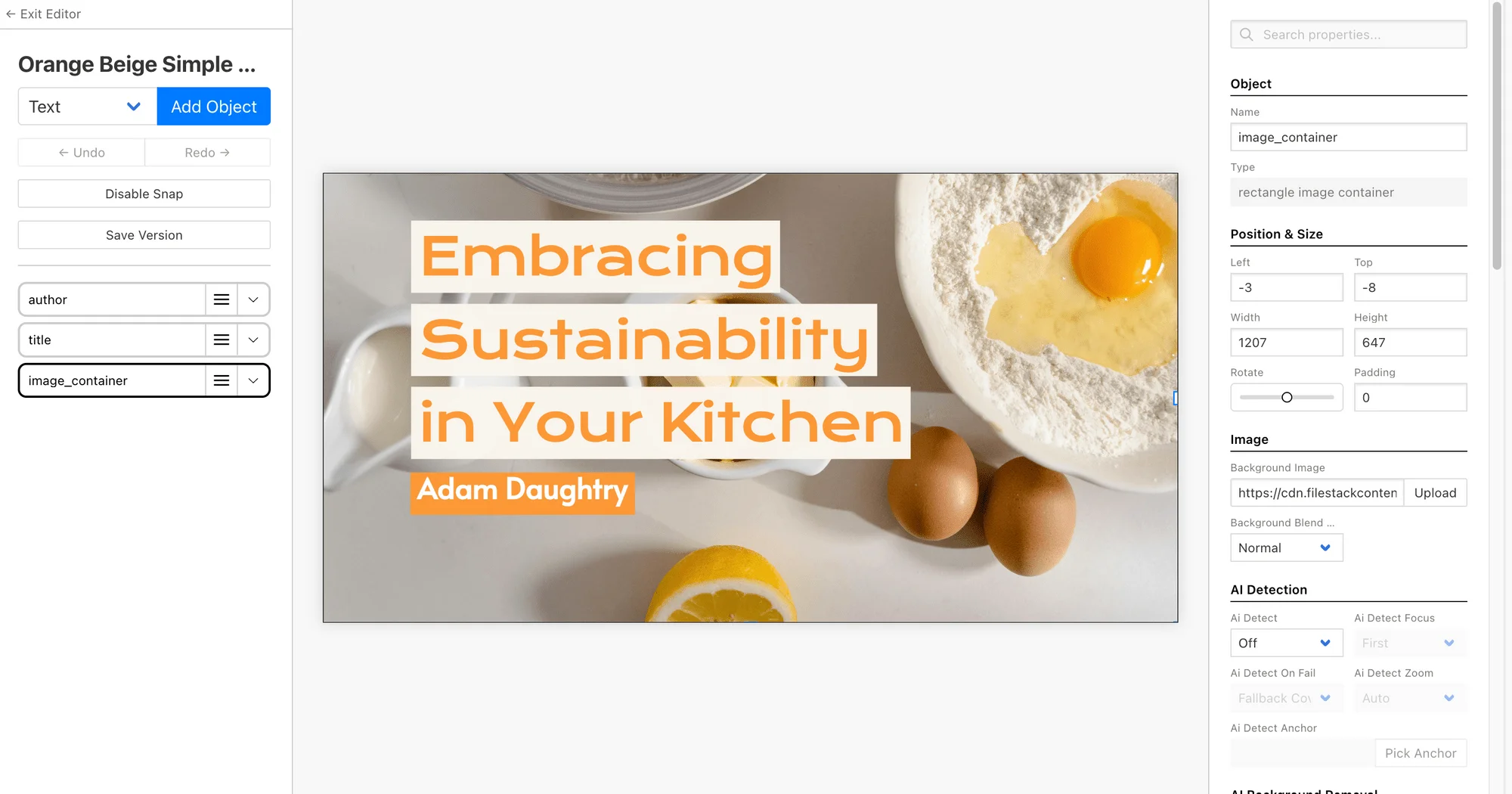
The rendering step usually happens over a REST API, which is what lets image automation plug into almost any other tool: a Zapier or Make.com scenario, a CRM, an ecommerce platform, or custom code. Send a request with the values you want, get back a finished image. No manual export, no design software open on someone's desktop.

Build a template once, connect your data, and generate branded images and videos automatically through a simple API.
What is visual automation used for?
Once the template and data connection are set up, teams use image automation for any situation where the same layout needs to repeat with different content:
- Social media graphics. Auto-generating a branded quote card, stat card, or product post for every new blog article or product launch.
- Open Graph and share images. Creating a unique preview image for every page on a site so links look distinct when shared.
- Ecommerce product images. Adding price badges, ratings, or "sold out" labels across a catalog without editing each image file.
- Personalized ads and emails. Inserting a recipient's name, city, or usage stats into a banner for one-to-one marketing at scale.
- Certificates and reports. Generating a finished PDF or image certificate the moment a course, event, or milestone is completed.
The common thread is volume and personalization. Personalized content already outperforms generic content across most channels, yet only about 32% of businesses say most of their content is actually personalized, largely because manual production does not scale. Image automation is one of the more direct ways to close that gap for visual content specifically.
Image automation vs manual design vs AI image generation
These three approaches solve different problems, and teams often use more than one at the same time.
| Approach | Speed at scale | Brand consistency | Best for |
|---|---|---|---|
| Manual design | Slow, one at a time | High, but time-limited | One-off hero pieces, campaign key art |
| Image automation (template based) | Seconds per image, unlimited volume | High, locked to approved templates | Repeating layouts with changing data |
| AI generative tools | Fast, but each result varies | Low, output is different every time | Original concept art, exploration |
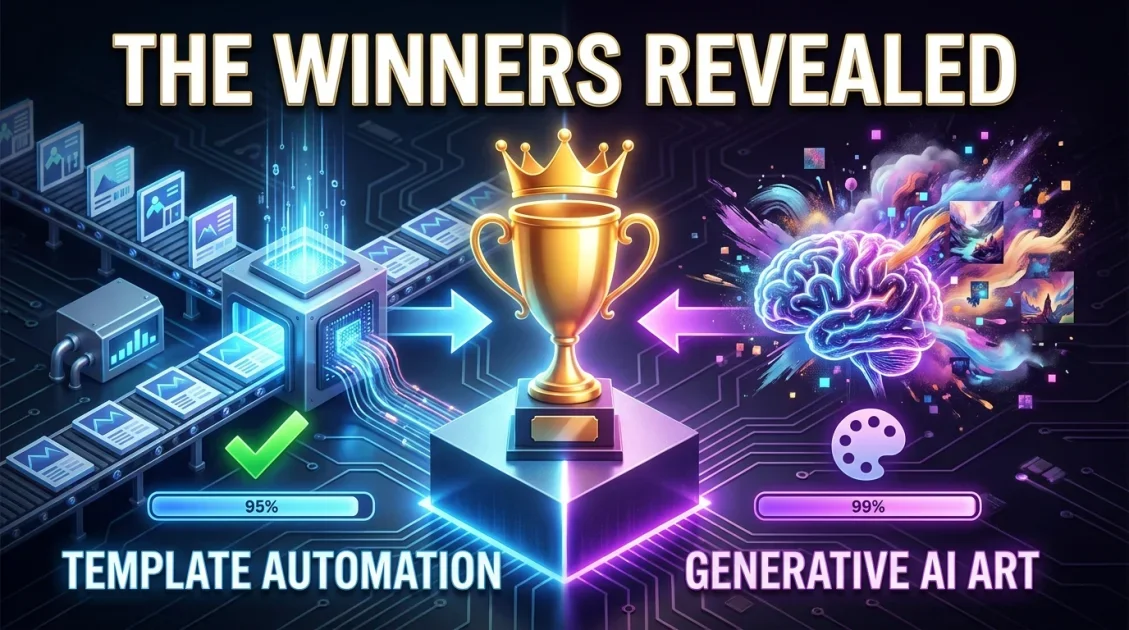
In short, manual design wins on creative control for a single piece, generative AI wins on producing novel imagery, and template-based automation wins whenever the same design needs to repeat reliably, on brand, at volume.
How to set up marketing image automation
Setting up an automated workflow generally takes four steps, regardless of which platform you use:
- Design the template. Recreate your existing layout in the platform's editor and mark which elements (headline, image, badge, price) should change per version.
- Connect a data source. Link a spreadsheet, form tool, or your own app through the API so each row or event becomes one image.
- Map the fields. Match each column or field in your data to the matching placeholder in the template.
- Trigger generation. Set the workflow to run automatically, on a schedule, on form submission, or on a webhook, so images generate without anyone opening the editor again.
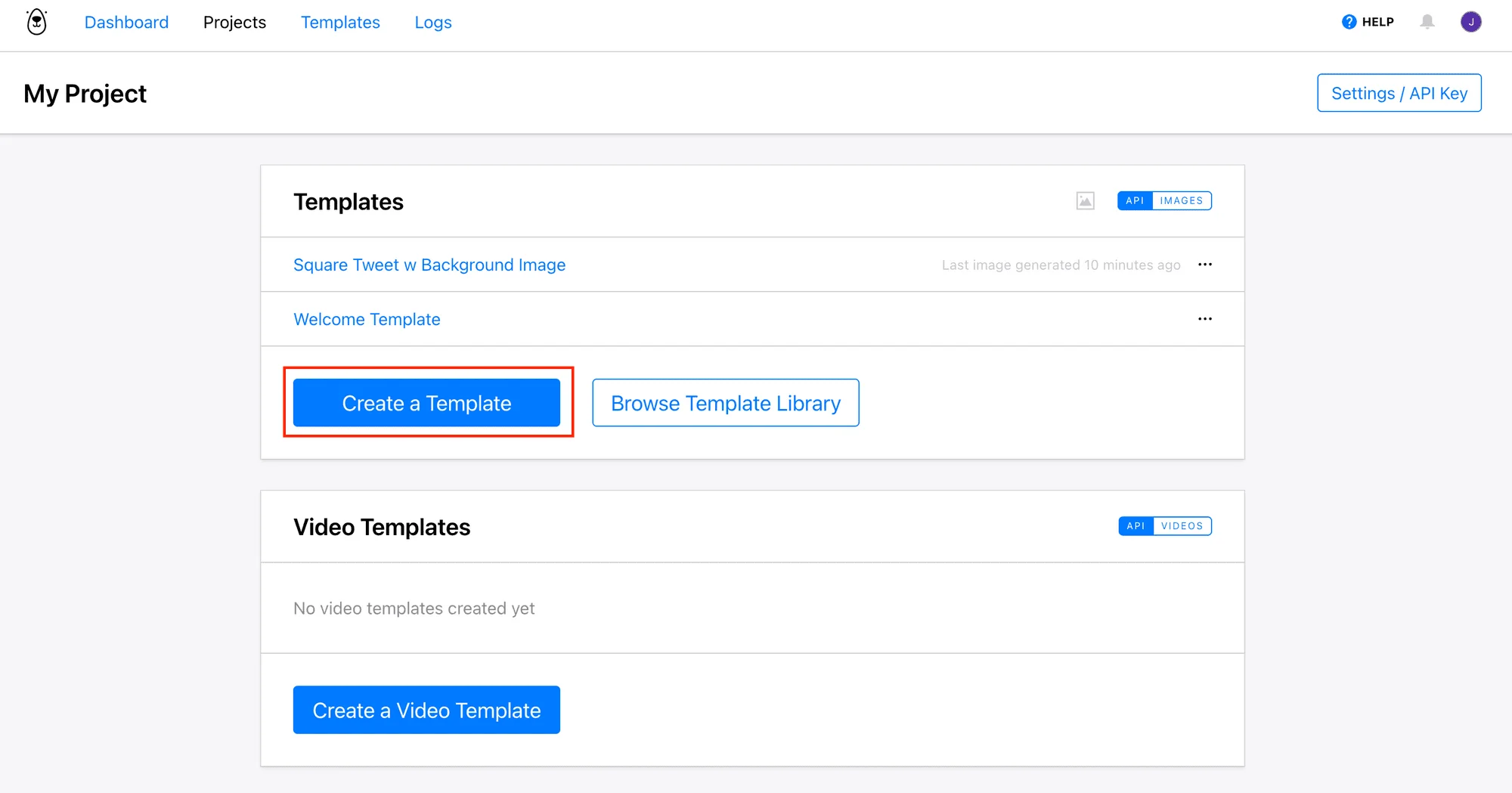
Most teams start with the use case that produces the most repetitive design work, usually social graphics or OG images, get that workflow running end to end, then add more templates once the first one is proven.
Design a template, connect Zapier, Make, or a direct API call, and start generating images automatically the same day.
What tools support image automation?
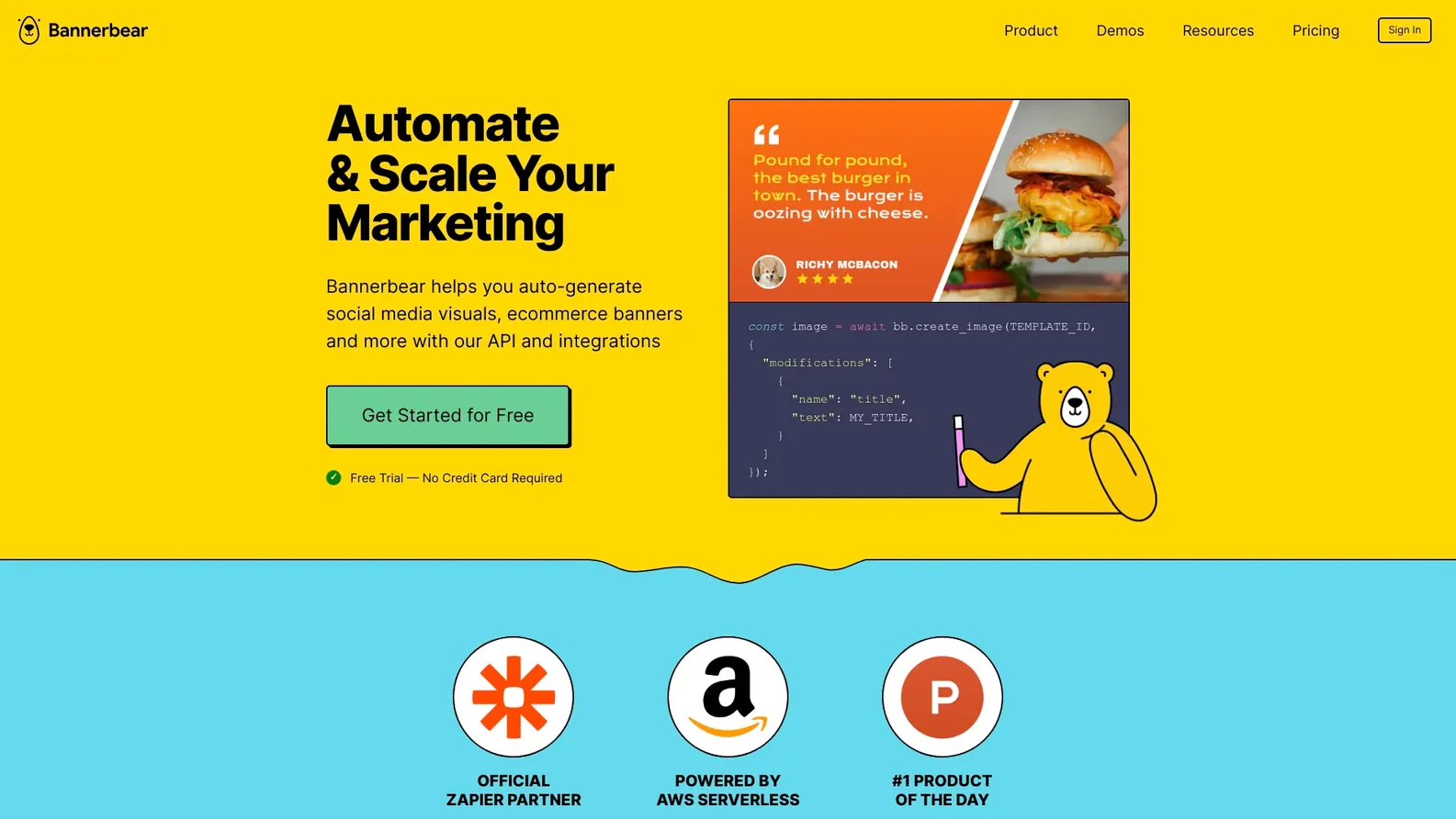
Image automation platforms generally fall into template-based API tools, no-code automation connectors, and generative AI tools used for source imagery. Bannerbear is a template-based image and video generation API built specifically for this workflow, with a visual editor, direct integrations with Zapier, Make, and Airtable, and REST API access for custom builds. If you want a wider view of the category, our roundup of the best image generation APIs in 2026 compares several options side by side.
Benefits and challenges of image automation
The main benefit is straightforward: teams stop trading designer hours for image volume. A single template can produce unlimited variations, which frees design time for higher-value creative work instead of repetitive resizing and reformatting.
The tradeoff is upfront setup. Someone has to build the template correctly and map the data fields the first time, and templates need occasional updates when a brand redesign happens. For most teams generating more than a handful of similar images a week, that one-time setup cost is repaid within the first batch of generated assets.
Final Verdict
Who should use image automation?
Any team producing more than roughly 10 similar images a month, social graphics, OG images, personalized ads, product badges, will save meaningful time by moving from manual design to a template-based automation tool. Teams making only occasional, fully custom hero graphics have less to gain and can stick with manual design for now.
Recommended starting point: Bannerbear, for its combination of a visual template editor, wide integration support, and a straightforward API.
Ready to automate your image production?
Build your first template and connect your data in minutes with Bannerbear.
Try Bannerbear Free →No credit card required to start.
Frequently asked questions
Is image automation the same as AI image generation?
No. Image automation merges data into a designer-approved template to produce consistent, on-brand images, while AI image generation creates original artwork from a text prompt, with results that vary each time.
Do I need to know how to code to use image automation?
Not necessarily. Most platforms offer a visual template editor plus no-code connectors like Zapier and Make, though developers can also call the API directly for custom workflows.
What file types can automated image tools produce?
Most platforms output PNG or JPG images, and several, including Bannerbear, also support MP4 video generation from the same template system.
How much does image automation cost?
Pricing typically scales with the number of images generated per month, with plans ranging from a limited free tier to enterprise volume pricing. Check a provider's pricing page directly, as usage limits vary widely between tools.
Can image automation connect to Google Sheets or Airtable?
Yes. Most template-based platforms support Google Sheets, Airtable, and CSV imports as data sources, in addition to direct API and webhook connections.
Comments (0)
Leave a Comment