
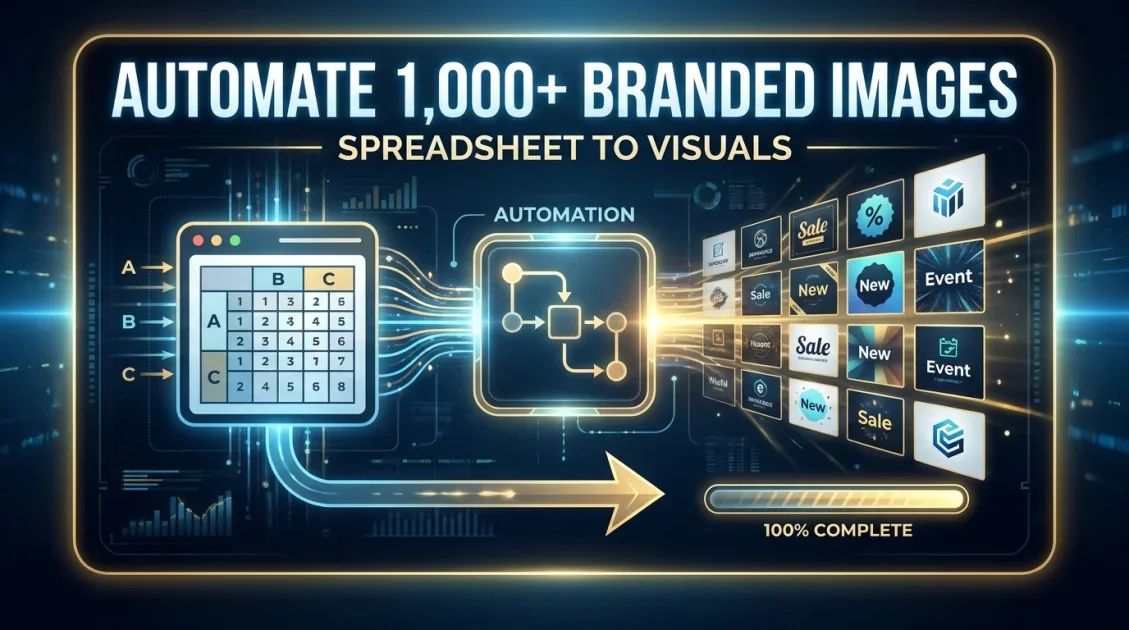
To generate images from a spreadsheet, map each column in your Google Sheets, Airtable, or CSV file to a dynamic field in an image template, then send that data to an image generation API in bulk so every row produces its own finished image. Tools like Bannerbear support this natively through bulk generation endpoints and no-code connectors like Zapier and Make, so you don't need to write custom rendering code to turn spreadsheet rows into branded visuals. This guide walks through the full setup, from template to finished output.
In this article
- Why generate images from spreadsheet data?
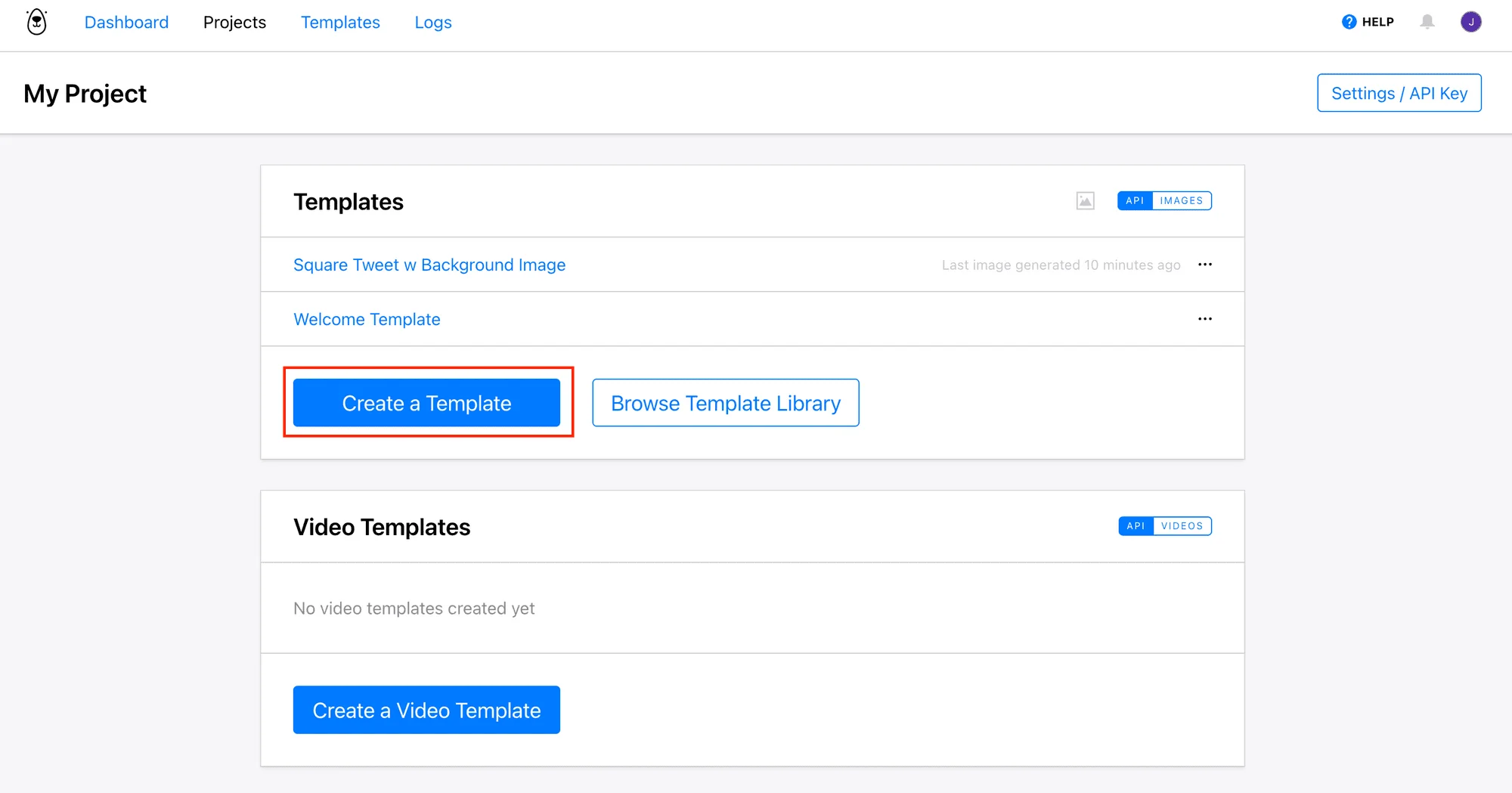
- Step 1: Build a template with matching fields
- Step 2: Connect your spreadsheet to the API
- Step 3: Generate images in bulk
- Common use cases
- FAQ
Why generate images from spreadsheet data?
Spreadsheets are already where a lot of structured business data lives, whether it's a product catalog, a list of event attendees, or a roster of real estate listings. Turning each row into a finished, on-brand image by hand doesn't scale past a handful of entries. Automating the process means updating a spreadsheet is enough to produce hundreds of unique, consistent images without opening a design tool.
Step 1: Build a template with matching fields
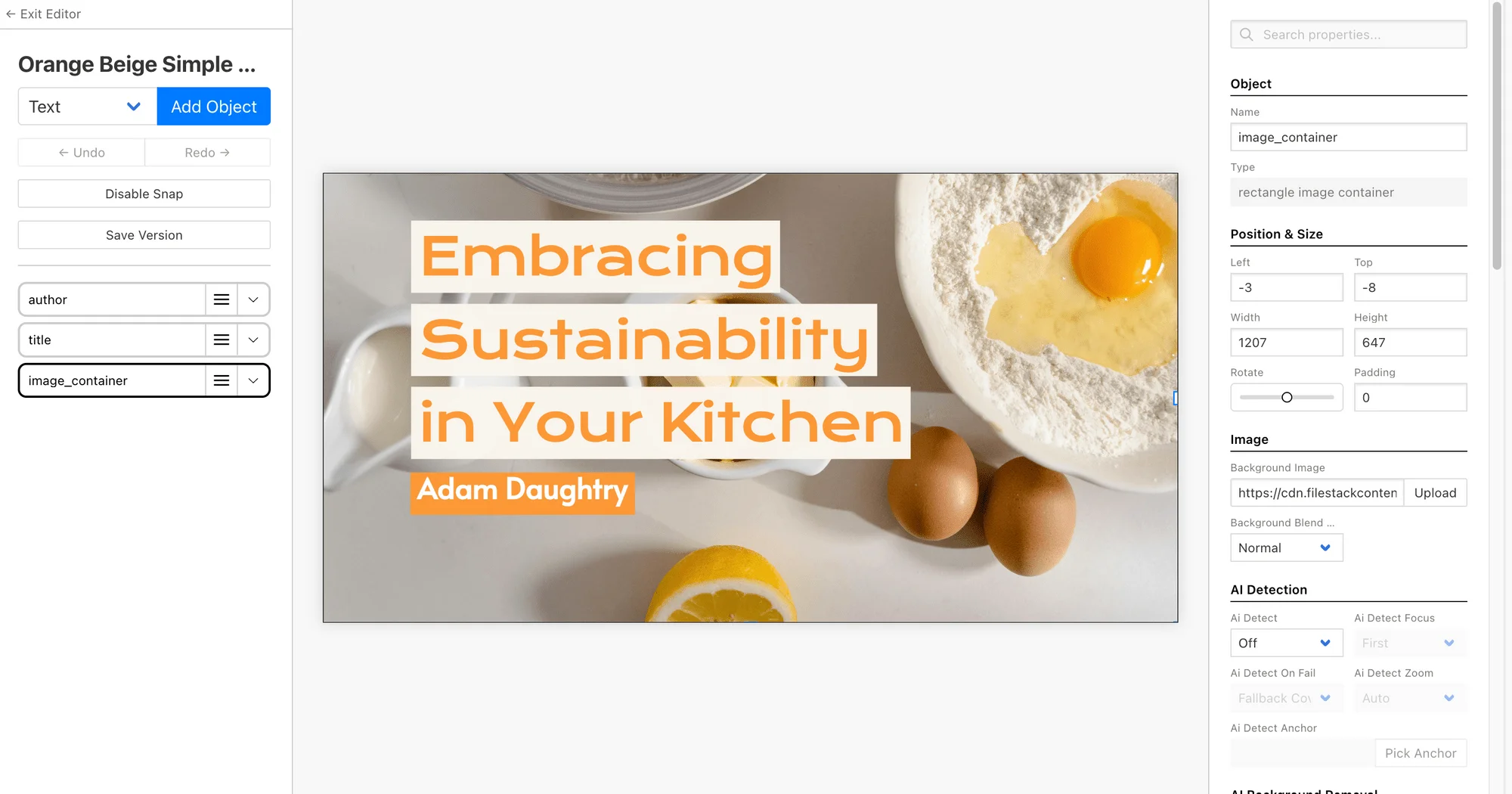
Start by designing your image layout once in a visual template editor, then mark the elements that should change per row, such as a name, price, photo, or category, as dynamic fields. It helps to name these fields to match your spreadsheet's column headers, since that makes the mapping step later much more straightforward.
Step 2: Connect your spreadsheet to the API
There are two common ways to connect a spreadsheet to an image generation API, depending on how technical your team wants to get:
- No-code route: Use Zapier or Make to trigger generation whenever a row is added or updated in Google Sheets or Airtable. Each column maps directly to a field in your image template, and no code is required.
- Direct API route: Export your spreadsheet as a CSV, parse it in a script, and send each row's data to the API's bulk generation endpoint. This gives more control over formatting and error handling, and suits teams that already have some engineering resources.

Step 3: Generate images in bulk
Once your data is mapped to your template's fields, a bulk generation request can process an entire spreadsheet's worth of rows in one call, returning a finished image for each one. This is far more efficient than triggering a separate request per row, especially for catalogs running into the hundreds or thousands of entries.
Once generation finishes, each image is returned with a URL you can store back in your spreadsheet, your CMS, or wherever the images need to be referenced downstream, whether that's a product listing page, an emailed certificate, or a social post.
Common use cases
- Ecommerce catalogs: Generate a branded product banner for every SKU directly from a product spreadsheet.
- Real estate listings: Turn a spreadsheet of property details into consistent listing graphics for every home.
- Event badges and certificates: Generate a personalized badge or certificate for every attendee from a registration spreadsheet.
- Recruiting and job boards: Auto-generate a social graphic for every open role pulled from an Airtable base.
Final verdict
Who should use this workflow?
Any team with structured data in a spreadsheet, whether that's a product catalog, an event roster, or a listings database, that needs a consistent, branded image for every row will benefit from automating this process rather than designing entries one at a time.
Overall rating: 4.5 out of 5
Frequently asked questions
Can I generate images directly from Google Sheets?
Yes. Using a no-code connector like Zapier or Make, you can trigger image generation whenever a row is added or updated in Google Sheets, with each column mapped to a dynamic field in your template.
Can I generate images from Airtable?
Yes, the same approach applies to Airtable. Most image generation APIs, including Bannerbear, support both direct API calls and Airtable automations through Zapier or Make.
Do I need to know how to code to do this?
No. The no-code route using Zapier or Make requires no coding at all. Direct API integration gives more control but is only necessary if you want custom formatting or error handling beyond what the no-code connectors offer.
How many images can I generate in one batch?
This depends on your image generation provider's plan and rate limits. Bulk generation endpoints are built to handle large batches, but check your specific plan's limits before running a very large catalog in a single request.
Ready to turn your spreadsheet into images?
Map your columns to a template once and let Bannerbear generate an image for every row.
Try Bannerbear free →No credit card required to start.


Comments (0)
Leave a Comment