
Converting HTML to PDF sounds simple until you actually try it. Headless browser setups break on custom fonts, CSS breaks across page boundaries, and JavaScript-rendered content often doesn't render at all in older conversion tools. This guide covers how to convert HTML to PDF via API properly — handling live pages, raw HTML, headers/footers, and pagination — without standing up and maintaining your own rendering infrastructure.
In this article
- Why convert HTML to PDF via API instead of self-hosting a renderer
- Three ways to convert: raw HTML, live URL, or Markdown
- Step 1: Send raw HTML to the API
- Step 2: Convert a live URL directly
- Step 3: Add headers, footers, and page numbers
- Step 4: Handle CSS and JavaScript-rendered content
- Common pitfalls when converting code to PDF
- FAQ
Why Convert HTML to PDF via API Instead of Self-Hosting a Renderer?
The DIY route — running a headless Chromium instance yourself — means owning font installation, memory-hungry browser processes, timeout handling, and scaling under load. A dedicated HTML-to-PDF API abstracts all of that away: you send HTML (or a URL), and get a rendered PDF back, with the rendering engine, infrastructure, and edge cases handled server-side. This matters most once you're converting more than the occasional one-off document.
Three Ways to Convert: Raw HTML, Live URL, or Markdown
A capable HTML-to-PDF API typically supports three input methods, each suited to a different use case:
- Raw HTML — you send HTML content directly in the request body. Best when you're generating the HTML dynamically in your own app.
- Live URL — you point the API at a web page and it converts that page as rendered in a browser. Best for converting existing pages (reports, dashboards, articles) without touching their markup.
- Markdown — you send Markdown content and get a styled PDF back. Best for documentation or content that's already authored in Markdown.
APITemplate.io exposes all three as separate endpoints, which keeps the request shape simple regardless of which input format you're working with.
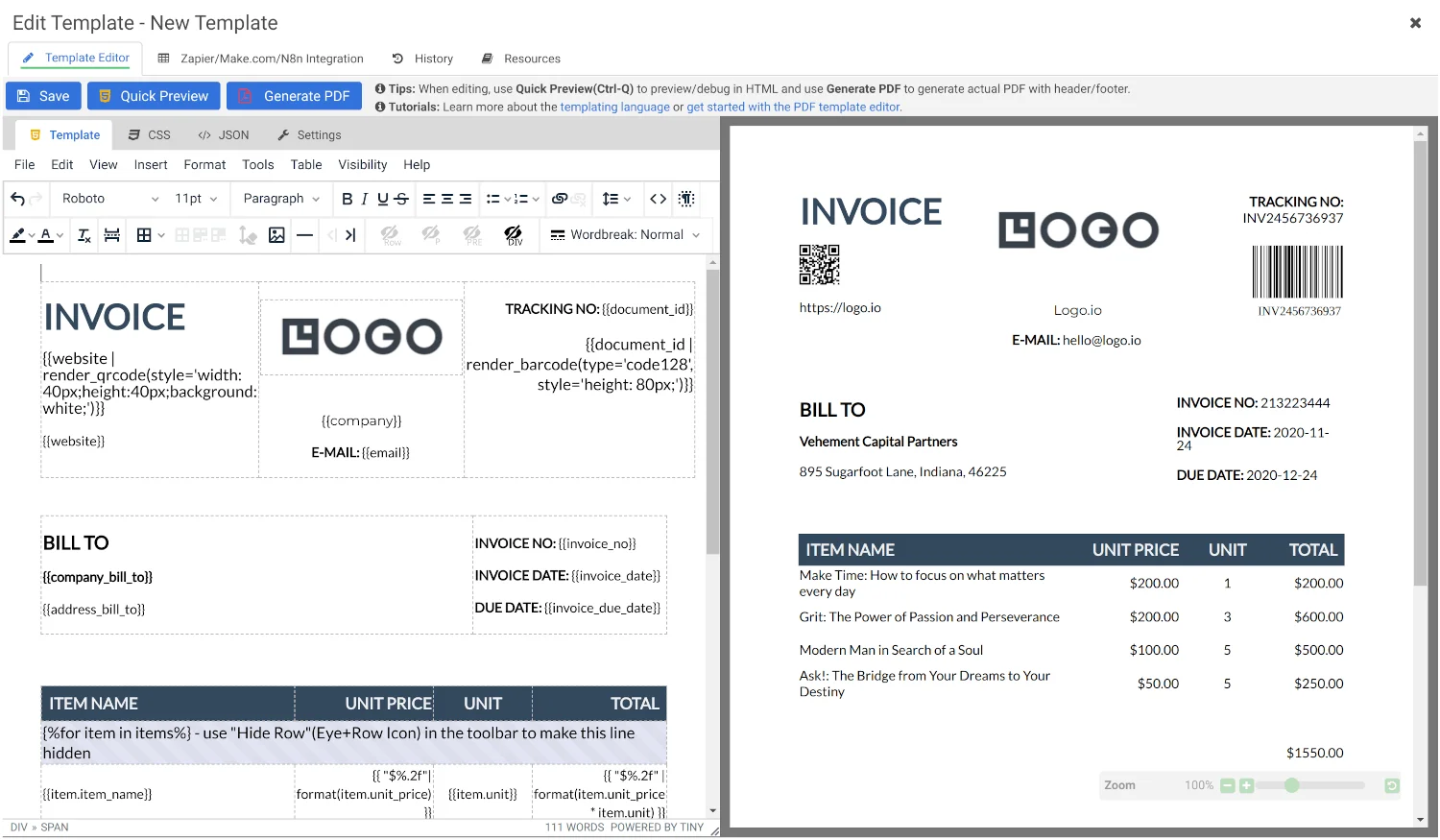
Convert raw HTML, live URLs, or Markdown to PDF with full CSS3/JS support via a browser-based rendering engine.
Step 1: Send Raw HTML to the API
To convert HTML content you're generating dynamically, send it as a string in the request body:
curl -X POST "https://rest.apitemplate.io/v2/create-pdf-from-html" \
  -H "X-API-KEY: YOUR_API_KEY" \
  -H "Content-Type: application/json" \
  -d '{
    "body": "<html><body><h1>Order Confirmation</h1><p>Thanks for your order.</p></body></html>"
  }'
The response returns a download_url pointing to the generated PDF. This is the pattern to use when your HTML is built server-side from a database record, form submission, or template engine.
Step 2: Convert a Live URL Directly
If you want to convert an existing web page — a dashboard, report, or article — without rebuilding it as raw HTML, point the API at the URL instead:
curl -X POST "https://rest.apitemplate.io/v2/create-pdf-from-url" \
  -H "X-API-KEY: YOUR_API_KEY" \
  -H "Content-Type: application/json" \
  -d '{
    "url": "https://example.com/reports/q3-summary"
  }'
This method renders the page exactly as a browser would, including any content loaded after the initial page load — which matters for the next section.
Step 3: Add Headers, Footers, and Page Numbers
Multi-page documents almost always need repeating headers, footers, or page numbering (e.g., "Page 1 of 3"). A capable API handles this without extra rendering logic on your side — you set page size, orientation, margins, and header/footer content directly in the request or template settings, and pagination, page counting, and even table-of-contents generation are handled automatically rather than requiring you to calculate page breaks yourself.
Step 4: Handle CSS and JavaScript-Rendered Content
This is where cheaper or older HTML-to-PDF tools fall short. If your page relies on JavaScript to render content — client-side charts, dynamically loaded data, web fonts loaded asynchronously — you need a renderer built on an actual browser engine, not a simplified HTML parser. A browser-based renderer executes JavaScript and applies CSS the same way Chrome or Firefox would, so what you see in a browser preview is what ends up in the PDF, including custom fonts and dynamic charts.
Common Pitfalls When Converting Code to PDF
- Assuming static rendering is enough. If any part of your page loads via JavaScript, a non-browser-based converter will render a blank space instead.
- Ignoring page-break behavior. Tables and content blocks that aren't given explicit page-break rules can split awkwardly across pages — test with realistic content length, not a short placeholder.
- Forgetting print-specific CSS. Screen and print rendering can differ; if your page has a separate print stylesheet, make sure the API respects it or account for the difference explicitly.
- Not testing at production data volume. A template that looks fine with 5 rows of data can break with 500 — always test with realistic, maximum-length content before shipping.
Bottom Line
Converting HTML to PDF reliably comes down to picking an API with a real browser rendering engine, choosing the right input method (raw HTML, URL, or Markdown) for your use case, and testing with production-realistic content before you ship. Skipping self-hosted rendering infrastructure saves the ongoing maintenance burden of headless browser scaling and font management.
Frequently Asked Questions
Can I convert a live web page to PDF without changing its HTML?
Yes. APIs that support URL-based conversion render the page as a browser would, including JavaScript-loaded content, and return a PDF without requiring any changes to the source page.
Will JavaScript-rendered content show up in the PDF?
Only if the conversion tool uses an actual browser rendering engine. Simplified HTML parsers typically won't execute JavaScript, so dynamically loaded content will be missing from the output.
Can I add page numbers and headers automatically?
Yes, most HTML-to-PDF APIs support automatic page numbering, repeating headers/footers, and table-of-contents generation without requiring you to calculate page breaks manually.
What's the difference between converting raw HTML vs. a URL?
Raw HTML conversion is best when you're generating the markup dynamically in your own application. URL conversion is best when you want to convert an existing, already-hosted page without rebuilding its markup.
Convert Your First HTML Page to PDF
50 free PDFs a month, full CSS3/JS support, no credit card required.
Try It Free →


Comments (0)
Leave a Comment