
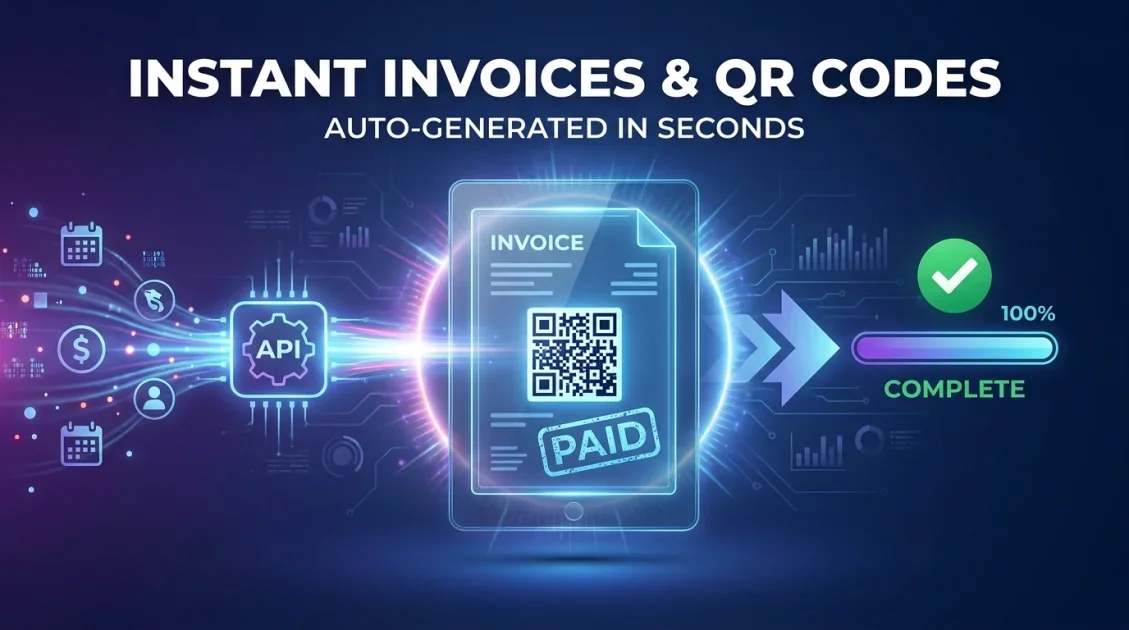
Manually creating invoices doesn't scale. The moment your business processes more than a handful of orders a month, you need a way to turn order data into a finished, branded PDF automatically — ideally with a scannable QR code for payment links, tracking, or verification baked right in. This guide walks through exactly how to set that up using a PDF generation API, from designing the template to triggering generation on autopilot.
In this article
- Why use an API instead of a PDF library or manual template
- Step 1: Design your invoice template
- Step 2: Add a dynamic QR code to the template
- Step 3: Generate the invoice via API
- Step 4: Automate the trigger
- Step 5: Handle multi-page and batch invoices
- FAQ
Why Use an API Instead of a PDF Library or Manual Template?
Three common approaches exist for generating invoices: manually filling out a template, using a code-level PDF library (like a wkhtmltopdf wrapper), or calling a hosted PDF generation API. The API approach wins for most teams because the template lives outside your codebase — a non-technical teammate can update branding or layout without a deploy, and the rendering engine, fonts, and edge cases are someone else's maintenance problem. It also means invoice generation can be triggered from anywhere: your backend, a no-code tool like Zapier, or a webhook from your payment processor.
Step 1: Design Your Invoice Template
Start by building a reusable invoice template rather than hardcoding a one-off document. In APITemplate.io, this means using either the drag-and-drop WYSIWYG editor or the HTML/CSS editor to lay out your invoice — company logo, line-item table, totals, payment terms — with placeholders for the data that changes per invoice (customer name, invoice number, amounts, due date).
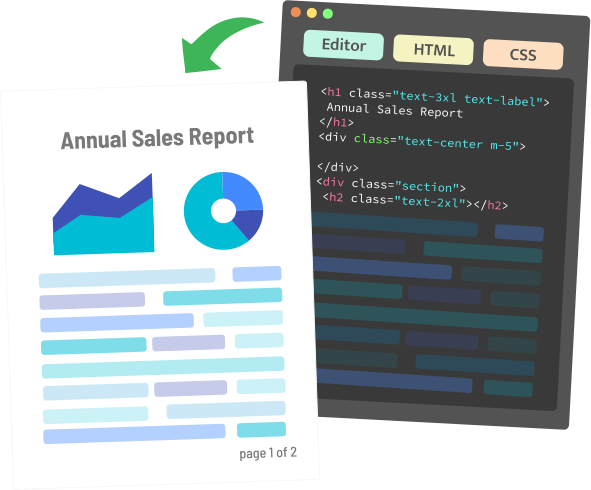
Design once in the visual or HTML editor, then generate unlimited invoices from a single template via API.
If your invoices sometimes run to multiple pages — long line-item lists or extended terms — build the template to handle pagination automatically rather than assuming every invoice fits on one page. This avoids clipped content when a customer orders more line items than usual.
Step 2: Add a Dynamic QR Code to the Template
QR codes on invoices are typically used for one of three things: a direct payment link, a tracking/verification code tied to the invoice number, or a link back to an online copy of the document. Rather than generating a QR code image separately and uploading it, embed a QR code element directly into the template and bind it to a dynamic field — the invoice number, payment URL, or order ID — so a fresh, correct QR code renders automatically on every invoice without any extra API call.
This is meaningfully different from bolting on a QR code after the fact: the code updates automatically whenever the underlying data changes, and there's no separate asset to generate, host, and reference.
Step 3: Generate the Invoice via API
Once your template is built and saved, generating an invoice is a single API call. Using APITemplate.io's v2 endpoint, the request looks like this:
curl -X POST "https://rest.apitemplate.io/v2/create-pdf?template_id=YOUR_TEMPLATE_ID" \
  -H "X-API-KEY: YOUR_API_KEY" \
  -H "Content-Type: application/json" \
  -d '{
    "invoice_number": "INV-1042",
    "customer_name": "Acme Logistics Ltd",
    "due_date": "2026-08-15",
    "total": "$1,240.00",
    "payment_url": "https://pay.example.com/inv-1042"
  }'
The response includes a download_url pointing to the finished PDF, with the QR code already rendered from the payment_url field you passed in. No separate QR generation step, no image hosting, no manual assembly — one call, one finished invoice.
Step 4: Automate the Trigger
The API call above is only useful if something fires it automatically. Common triggers include:
- Payment processor webhook — generate the invoice the moment a checkout or subscription payment succeeds.
- Order confirmation event — trigger from your e-commerce platform when an order is placed.
- Scheduled batch job — for recurring billing, generate a batch of invoices on a fixed schedule (e.g., the 1st of each month).
If you'd rather not write the webhook-handling code yourself, no-code platforms like Zapier, Make, or n8n can watch for the trigger event and call the PDF API as an action step — useful if invoice generation needs to live in an existing automation rather than your application backend.
Step 5: Handle Multi-Page and Batch Invoices
Two edge cases are worth planning for before you go live:
- Variable-length line items: if some invoices have 3 line items and others have 30, make sure your template's line-item section is built to expand rather than truncate — this is typically handled with a loop construct in the template rather than a fixed number of rows.
- Bulk generation: for month-end billing runs generating hundreds of invoices at once, check whether your API supports asynchronous generation with a webhook callback, so you're not holding a connection open per document — this matters more as volume grows.
Bottom Line
Auto-generating invoices with embedded QR codes comes down to three pieces: a reusable template with dynamic fields, a QR element bound to the right data, and a trigger that fires the API call automatically. Once that pipeline is built, adding a new customer or processing a new order requires zero manual document work.
Frequently Asked Questions
Can a PDF API generate a QR code automatically?
Yes. Template-based PDF APIs like APITemplate.io let you embed a QR code element in the template and bind it to a dynamic field (like a payment URL or invoice number), so it renders fresh on every generated document without a separate QR generation step.
What data do I need to send to generate an invoice via API?
At minimum, whatever fields your template references — typically invoice number, customer details, line items, totals, and due date. Any field you've mapped in the template editor can be overridden per request via the JSON payload.
Can I generate hundreds of invoices at once?
Yes, most PDF generation APIs support batch or asynchronous generation for high-volume runs, using a webhook callback to notify your system when each document is ready rather than waiting on an open connection.
Do I need to know how to code to set this up?
Not necessarily. The template itself can be built with a visual editor, and the trigger can be handled through no-code tools like Zapier or Make instead of custom backend code.
Automate Your First Invoice Today
Build a template, add a QR code, and generate your first invoice via API — free, no credit card required.
Get Started Free →
Comments (0)
Leave a Comment