
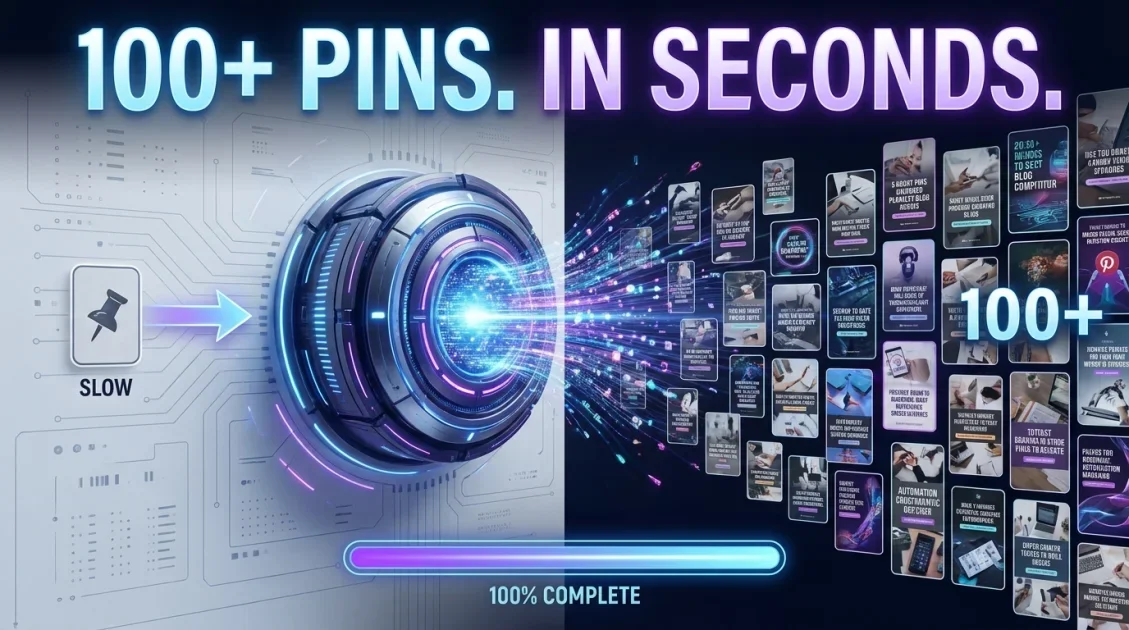
To generate Pinterest Pins automatically, connect a template-based image API to your blog posts, product feed, or spreadsheet so each new item produces a finished, on-brand vertical Pin without a designer opening a design tool. Build one Pin template with placeholders for the title text and image, map it to your content source, and generate a full batch in one run. This matters because a well-made Pin can keep driving traffic for months, so a steady, repeatable Pin production process compounds over time in a way manual design rarely keeps up with. This guide covers exactly how to set it up and what to watch for.
In this article
- Why automate Pinterest Pin creation?
- How to generate Pinterest Pins automatically
- Pin format and design requirements
- Tools for automating Pinterest Pins
- Best practices for bulk Pin creation
- FAQ
Why automate Pinterest Pin creation?
Pinterest rewards consistent, frequent publishing more than almost any other platform, but it also rewards content longevity in a way few other channels do. A single well-made Pin can keep driving traffic for three to six months or longer, which means the cost of producing each Pin gets paid back repeatedly over time rather than once. That makes Pinterest one of the clearest cases for automation: the more Pins you can produce consistently, the more compounding traffic you build, and manual design simply cannot keep pace with a content calendar that benefits from daily posting.
Automation also solves a practical problem: most sites need multiple Pin variations per blog post or product to test which design earns the most saves and clicks, and hand-designing three to five versions of every single post is not realistic at scale.
How to generate Pinterest Pins automatically
The process follows the same core steps as any template-based image automation workflow, adapted to Pinterest's format:
- Design a vertical Pin template. Build the layout at Pinterest's recommended 2:3 aspect ratio, with placeholders for the title text, a supporting image, and your logo.
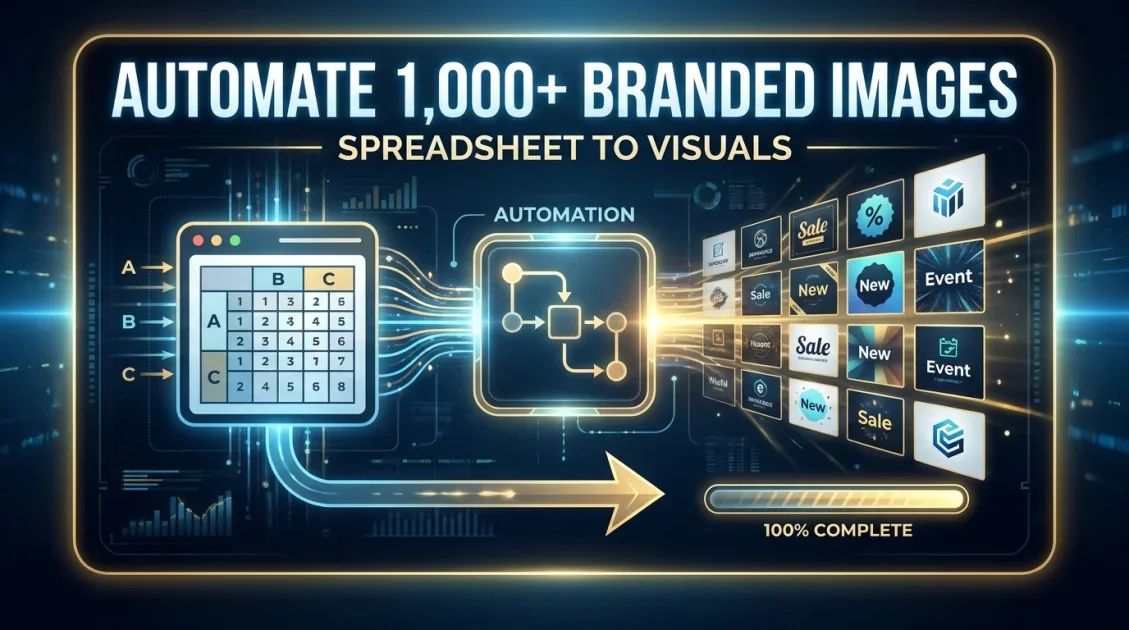
- Connect your content source. Link your blog's RSS feed, a spreadsheet of post titles, or your product catalog through the API, so each new item becomes a new Pin automatically.
- Map the fields. Match the post title to the headline placeholder and the featured image to the image placeholder, so the template fills correctly for every item.
- Generate multiple variations. Set up two or three template styles per post so you can test which design performs best, rather than publishing a single static Pin every time.
- Publish or schedule. Export the finished Pins and push them into a scheduling tool, or trigger publishing directly if your automation platform supports it.
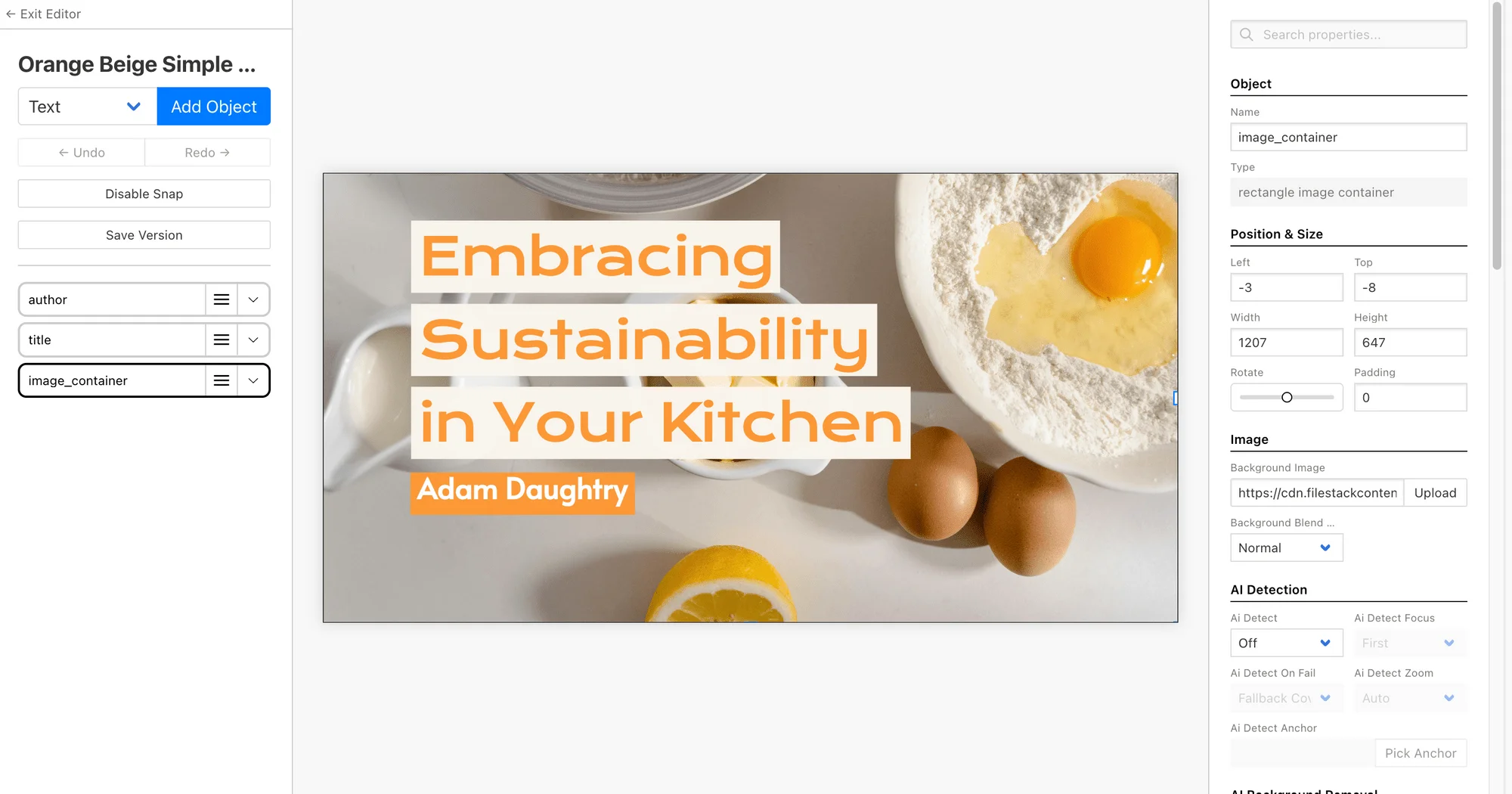

Build a Pin template, connect your blog or product feed, and generate a full batch of vertical Pins automatically.
Pin format and design requirements
Pinterest strongly favors a specific format, and automation makes it easy to apply consistently across every Pin:
| Spec | Recommendation |
|---|---|
| Aspect ratio | 2:3 vertical (Pinterest's algorithm favors this over square or horizontal) |
| Recommended size | 1000 x 1500px |
| File size | Under 20MB, 5MB or less recommended for faster loading |
| Text overlay | Short, keyword-rich headline, kept within the top two-thirds of the image |
A template locks these specs in place automatically, so every generated Pin comes out correctly sized without anyone needing to check dimensions by hand.
Tools for automating Pinterest Pins
Template-based image APIs like Bannerbear handle the design and generation side, connecting to a blog feed, spreadsheet, or Airtable base to produce Pins in bulk. Scheduling tools like Tailwind then handle the publishing calendar once the Pins exist. The two work well together: automation produces the volume, scheduling spaces it out. If you are pulling Pin content from a spreadsheet or Airtable base, our guide to generating images from a spreadsheet covers the field-mapping steps in more detail.
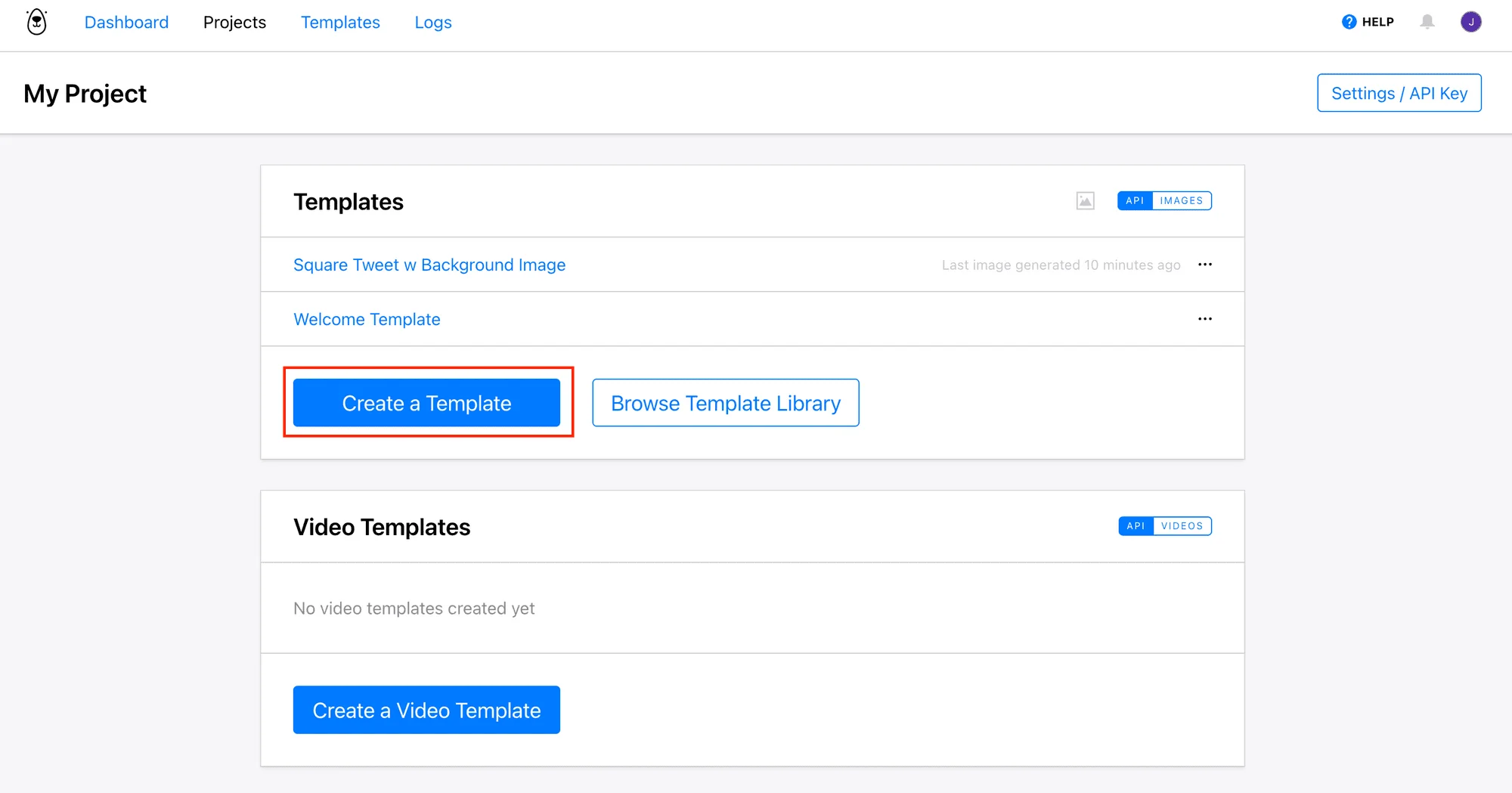
Generate several Pin design variations per post automatically, so you can test which style earns the most saves.
Best practices for bulk Pin creation
- Make several design variations per post. Two or three Pin styles for the same content let you test which one earns more saves and clicks over time.
- Keep text overlays short and keyword-rich. Pinterest is a search engine first, so headline text should mirror how people actually search, not just restate the post title.
- Stay consistent with branding. Lock your logo, font, and color palette into the template so every Pin is recognizable as yours regardless of who generates it.
- Automate new content, not just backlog. Connect the template to your blog's feed so every new post gets a Pin automatically instead of relying on someone to remember.
Final Verdict
Who should automate Pinterest Pin creation?
Bloggers, content publishers, and ecommerce brands publishing more than a few posts or products a week will see the clearest payoff, since Pinterest rewards both volume and consistency and a single template can serve an entire content calendar. Accounts posting only occasionally have less to gain and can manage Pin design manually for now.
Recommended starting point: Bannerbear, for its template editor and direct feed and spreadsheet integrations built for recurring content.
Ready to put your Pin creation on autopilot?
Build one template and start generating Pins for every new post automatically with Bannerbear.
Start Free →No credit card required to start.
Frequently asked questions
What size should an automated Pinterest Pin be?
Pinterest recommends a 2:3 vertical aspect ratio, ideally 1000 by 1500 pixels, kept under 20MB, with 5MB or smaller preferred for faster loading.
Can I generate Pins directly from my blog automatically?
Yes. Most template-based image APIs can connect to an RSS feed or webhook, so a Pin generates automatically each time a new post or product goes live, without manual work.
How many Pin variations should I create per post?
Two or three design variations per post is a reasonable starting point, letting you test different headlines or layouts to see which earns more saves without overcomplicating the workflow.
Do automated Pins perform worse than manually designed ones?
No, as long as the template follows Pinterest's format guidelines and stays on brand. Performance depends far more on the headline, image quality, and topic relevance than on whether a human or an automated system assembled the final file.
Can I connect Airtable or Google Sheets to generate Pins?
Yes. Most template-based platforms support Airtable, Google Sheets, and CSV as data sources, in addition to direct API and RSS feed connections.
Comments (0)
Leave a Comment